Create login accounts for Self Service Portal
Staff members who want a CiviHR account can click a link on the login screen and fill in a small form to request access to your CiviHR Self Service Portal. As the HR administrator, you will receive an email notification to create an account for them. Login and go to your Self Service Portal. Click on the cog icon and go to the Manage Users page:

You will see their request on this page in the form of a blocked account.

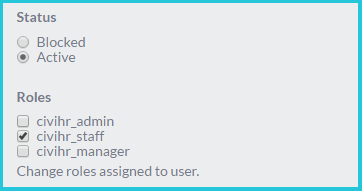
Click edit against this account. Set the account as ‘Active’ and pick the appropriate permission level.
-
The civihr_staff permission level allows staff to access the self service portal only, with their own key details, leave, tasks, public HR resources, staff directory and open job vacancies.
-
The civihr_manager permission level allows designated leave approvers to act on leave and sickness requests in their self service portal, in addition to the sections listed for civihr_staff.
-
The civihr_admin allows access to all staff data, HR reports and their own self service portal. all staff data and reports. This permission should be very selectively assigned.
You can also set up a new self service login by going to the Manage Users page, clicking the Add User button and filling in the form that opens up.
If you have already added a staff member’s data to CiviHR including the email, it is recommended that that same email address should be used to create the self service login. This allows CiviHR to understand that the staff member in your database and the staff member requesting access to the self service portal are one and the same, and prevents duplicates.
Remember to edit these logins and block the accounts of any staff who leave your organisation. You can add this step as one of your tasks in the exiting assignment in your CiviHR.