Component-level configuration
Configure Absences
1. Add Public Holidays
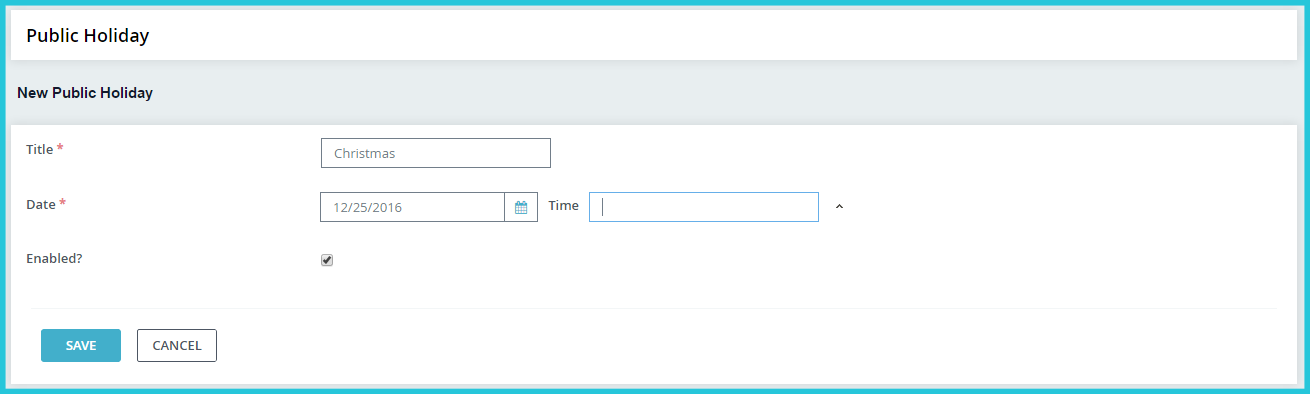
You can add public holidays observed by your organisation at Absences > Public Holidays. When anyone books leave for a period spanning a public holiday, these days are not deducted from their leave balance by default. Members of the staff who are required to work on public holidays will be able to change this while submitting their leave request from their self-service portal.
2. Add Absence Periods
An absence period is typically a calendar or financial year. You can add start and end dates depending on your organisation’s leave policy on Absences > Absence Period.
You must add an absence period in this screen before your staff are able to apply for leave during that period from their Self Service Portal. Adding a few consecutive absence periods at one go is good practice.

3. Add Absence Types
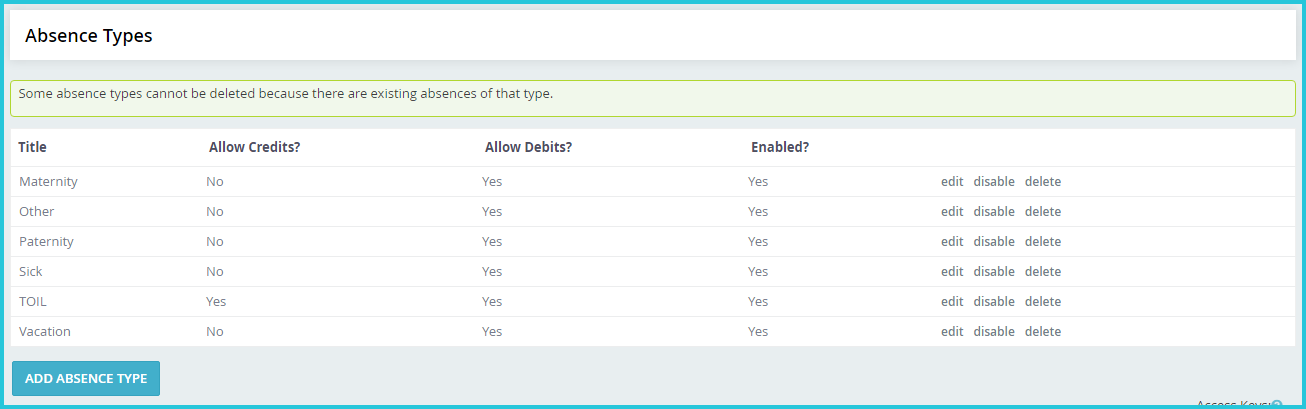
Add as many absence types as are used by your organisation in Absences > Absence Type. Some common absence types such as Time Off in Lieu have been added already for your use. You can add, rename, enable or disable absence types as required.
4. Add designated leave approvers
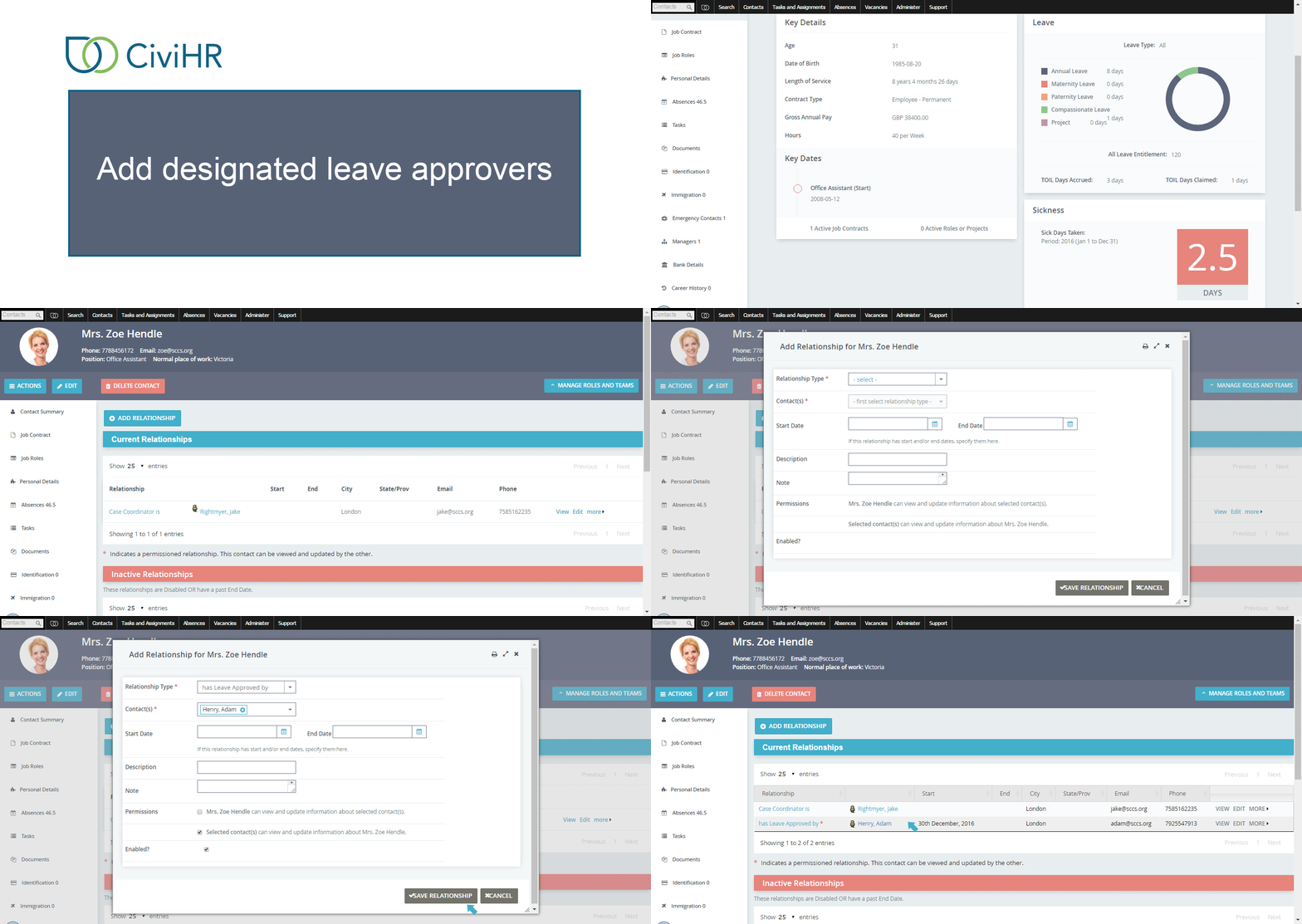
You will need to add one designated leave approver for all your staff members. This leave approver will get alerted when a leave request or sickness report is submitted for their attention. They can then sign into their CiviHR self-service portal and act on the request. Remember that designated leave approvers should be assigned the civihr_manager permission in their self service logins to be able to approve or reject leave requests.
To do this, go to the staff’s CiviHR profile > Manager tab for either the manager who will be the leave approver or the staff member. For example, if you are on the Manager tab of Joel’s contact record and you select the relationship type ‘is Leave Approver of’ and type in Anna under Contact(s), this means that now Joel will receive all of Anna’s leave or sickness requests and be able to act on them.
Get joining, exiting and contract renewals configured
You can add your organization’s complete task list for routine processes like joining and exiting. These task lists are called Assignments in CiviHR.
List the tasks that you must complete for joiners and exiting staff, along a timeline. For example, a joining task list would run as follows:
- Day 1: Issue appointment letter
- Day 1: Collect identification documents
- Day 2: Induction by supervisor
- Day 4: Introduction to department heads
- .. and so on.
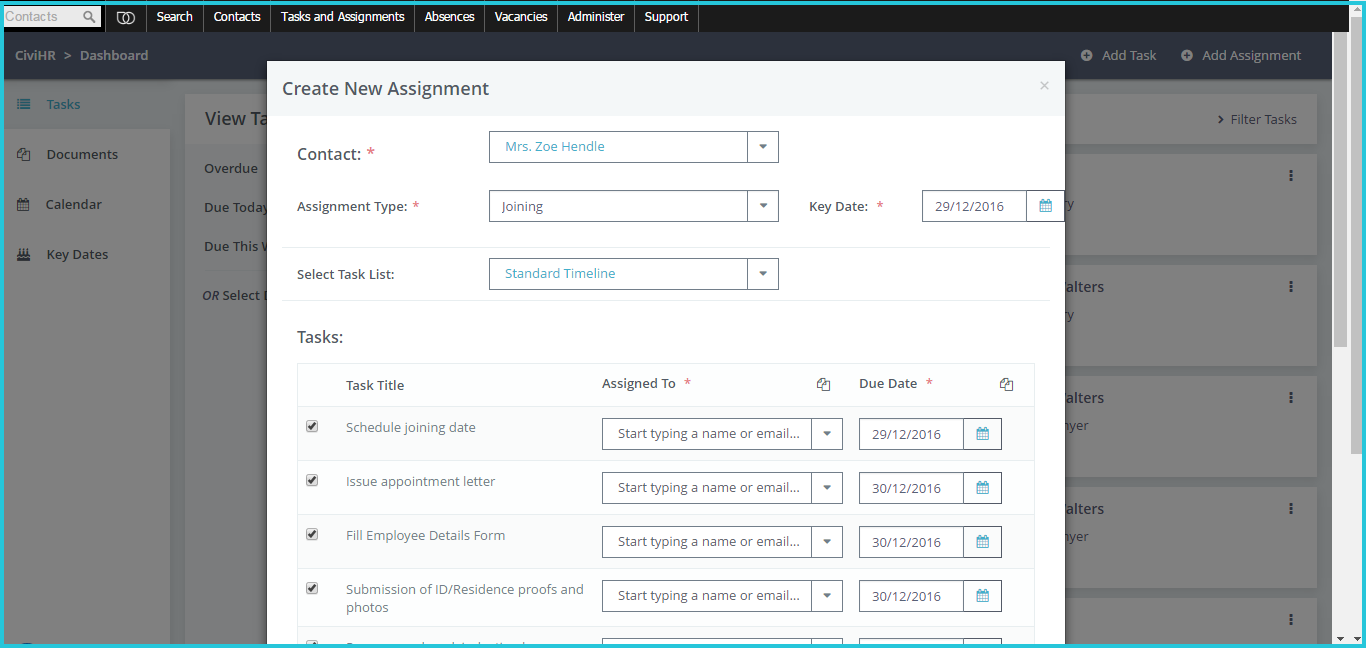
Your service provider will add these to your CiviHR site. You will be able to delegate and track tasks on this standard list and whenever you onboard staff or process exits.